Permissions
Introduction
Before connecting your secrets or certificates to Locksmith, it needs to have access to them. Please follow the steps below to configure Locksmith against your store of choice.
Stores
Azure Key Vault
When accessing a key vault in the same tenant as the Locksmith deployment, it is recommended to assign the Locksmith Managed Identity access to the Key Vaults. Otherwise, you can create your own service principal and configure Locksmith to use that.
The minimum permissions required are:
- Secrets:
Get,List, andSetpermissions or theKey Vault Secrets Officerrole - Certificates:
GetandListpermissions or theKey Vault Certificate Userrole - Keys:
GetandListpermissions or theKey Vault Crypto Userrole
About the default store
Locksmith comes configured with its own Key Vault instance so that it has a place to securely store your integration crededentials. These include things like the client secret used to connect to your Entra instance, or your Apple certificate used for signing tokens. This allows you to automatically rotate those secrets as well but you should not place your own secrets into this key vault. Instead, connect Locksmith to other Key Vault instances and manage your secrets in those.
Key Vault Permission Setup
First, you will need to grant Locksmith permission to access your Key Vault instance. The easiest way to do this is to grant Locksmith's Managed Identity permission to your vault:
https://learn.microsoft.com/en-us/azure/frontdoor/managed-identity
To link the managed identity, you can use the object ID or search by app name. To find the managed identity object ID, you can navigate directly to the Locksmith web app then instance --> settings --> identity
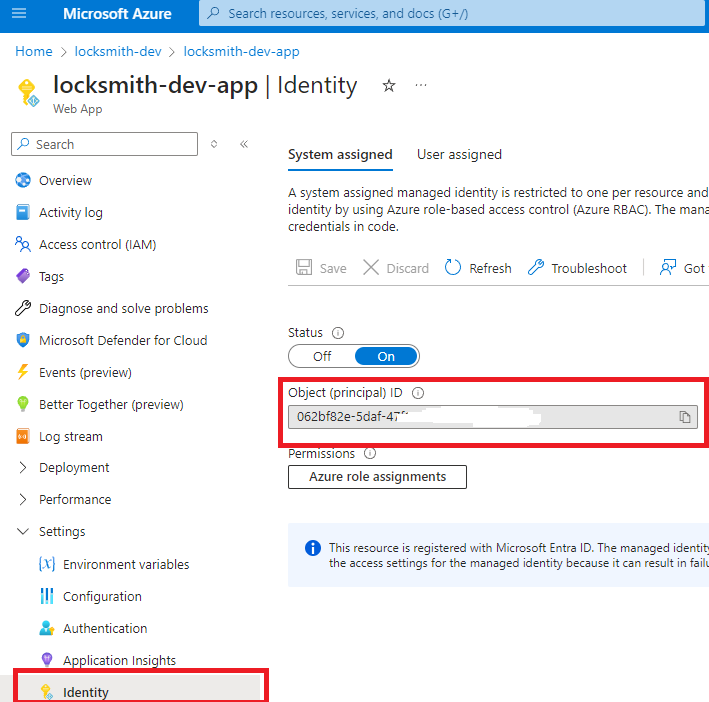
Since Key Vault has the capability to manage secrets, keys and certificates, it is recommended to give permissions to all of those objects. You can use a combination of Officer roles or the Key Vault Administrator role. Contributor is not required as Locksmith does not need to manage the resource itself.
Due to the nature of the application, we also recommend following Microsoft's best practices for using multiple key vaults.
For Locksmith, we recommend isolating all secrets requiring regular rotation into one Key Vault per environment.
Providers
Entra ID
To rotate client secrets on Entra ID applications, Locksmith requires either the Application.ReadWrite.OwnedBy if the service principal is added as owner or the Application.ReadWrite.All permission on your app registration.
Note: Assigning a service principal as owner of an app registration, is not currently possible in the Entra Portal. However, you can use MS Graph API to do this. https://learn.microsoft.com/en-us/graph/api/application-post-owners
If the Entra ID applications are in the same tenant where Locksmith is deployed, you could instead choose to assign the Cloud Application Administrator role to the Locksmith Managed Identity service principal.
Apple
Permission to dowload the .p8 file is required. According to Apple's documentation, this requires either the Account Holder or Admin level role: https://developer.apple.com/help/account/manage-keys/revoke-edit-and-download-keys/. Alternatively, you can have an admin upload the .p8 file to Key Vault and provide you other required details like Team ID and the Key ID.
Certificates
Locksmith has the ability to send certificates from Key Vault to any receiver, effectively making Key Vault the provider. Certificate permissions on the Key Vault store you configured are required so that Locksmith can read it. Currently, Locksmith waits for Key Vault to update it automatically and then pushes the secret, so only certificate read permissions are required.
However, future support for in-app certificate rotation is planned and that will require higher certificate permissions.
Receivers
Azure B2C Receiver
To rotate the Policy Keys, Locksmith requires the TrustFrameworkKeySet.ReadWrite.All permission on your app registration.
Entra ID Receiver
Coming soon