VC Issuance Flow
This guide walks you through the complete flow for issuing Verifiable Credentials using TrueCredential and IDVerse.
Overview
The credential issuance process consists of three main phases:
- Desktop Handoff - Initiate the process via QR code
- IDVerse Verification - Complete identity verification
- Credential Issuance - Receive your verified credential
Desktop Handoff

Scan the QR code with your mobile device to begin the credential issuance process.
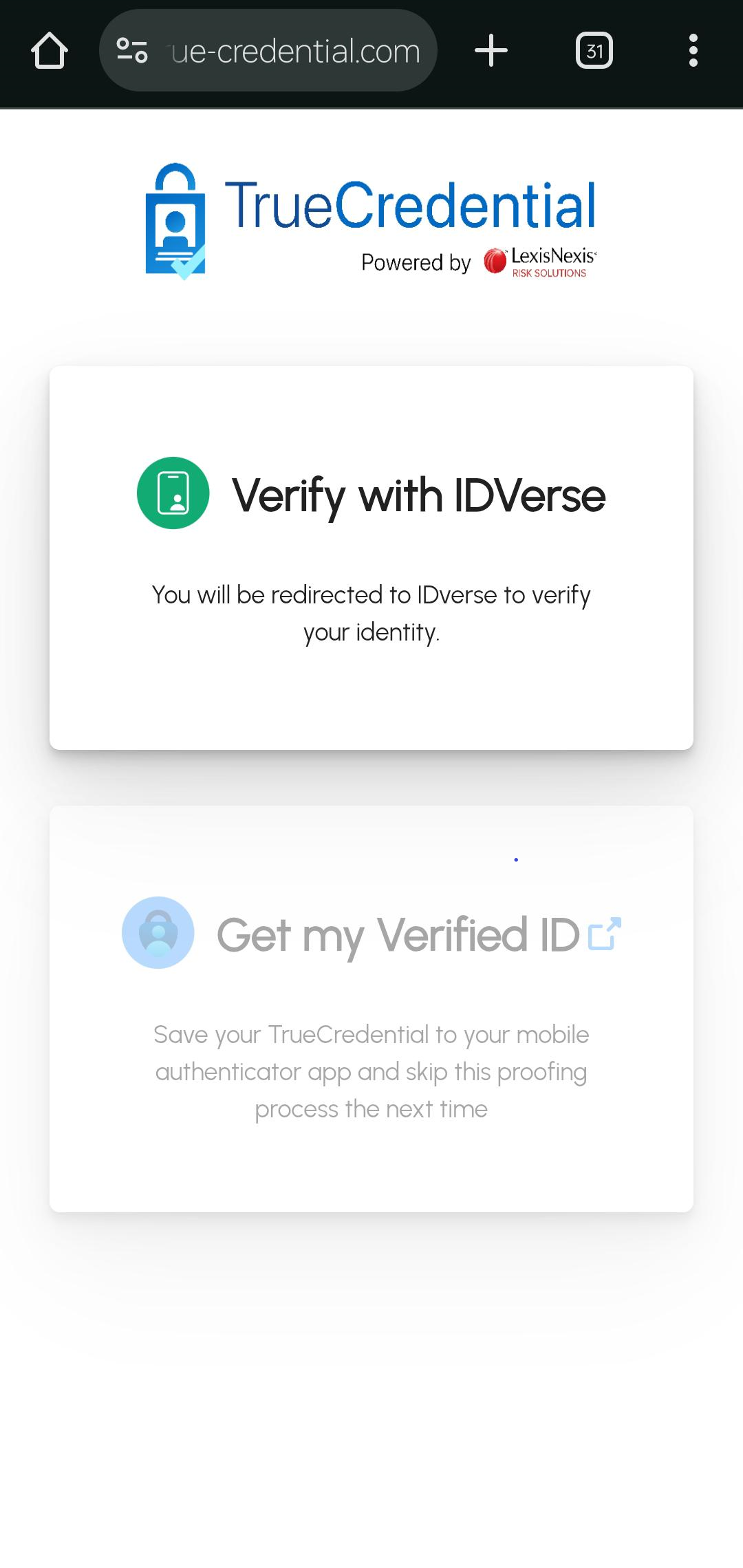
The desktop handoff screen provides options to verify with IDVerse. After completing the verification process, you will receive your verified ID.
IDVerse Verification Flow
Step 1: Privacy Consent
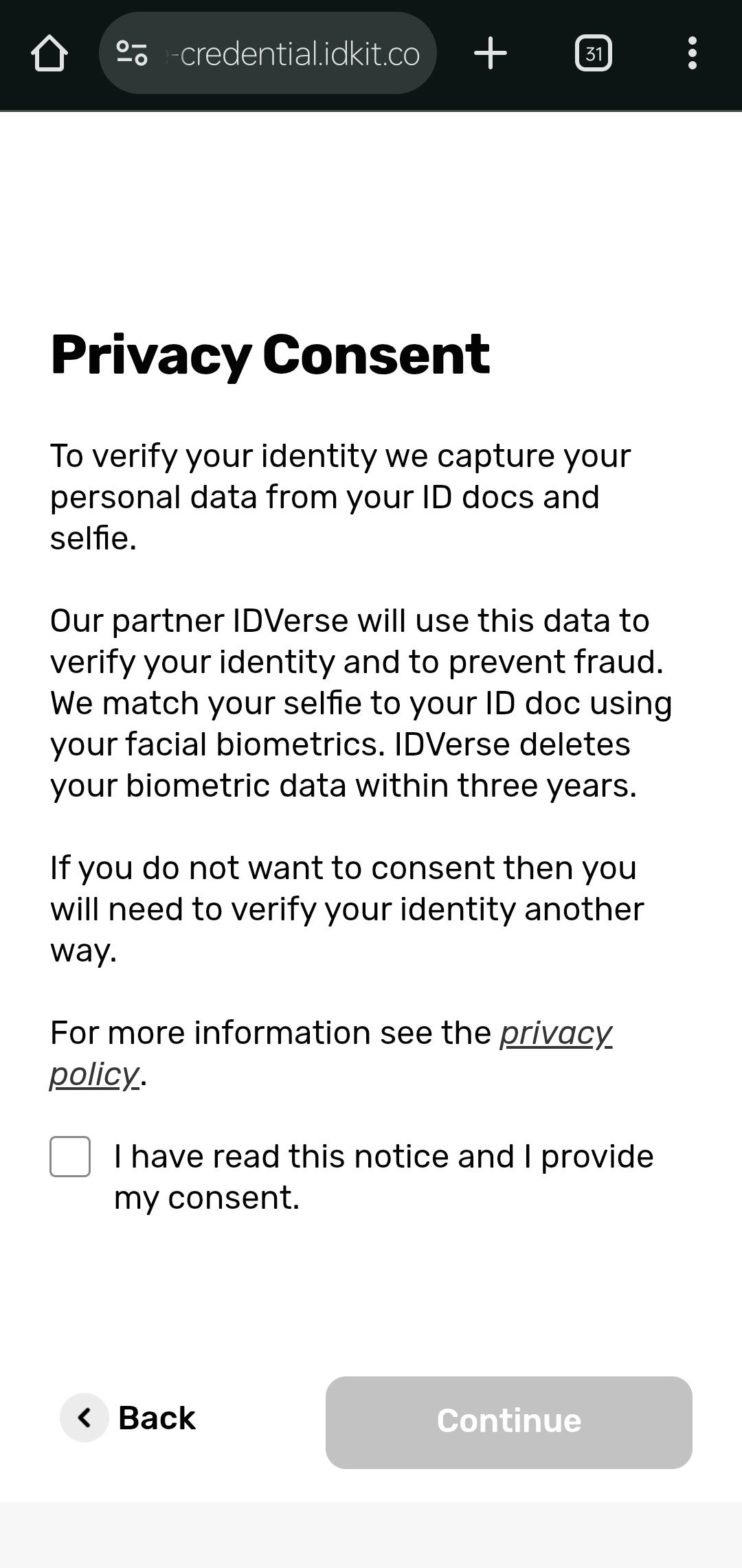
Review the privacy consent information about data collection and usage. Click "Continue" to accept the terms and proceed to identity verification.
Step 2: ID Document Capture (Front)
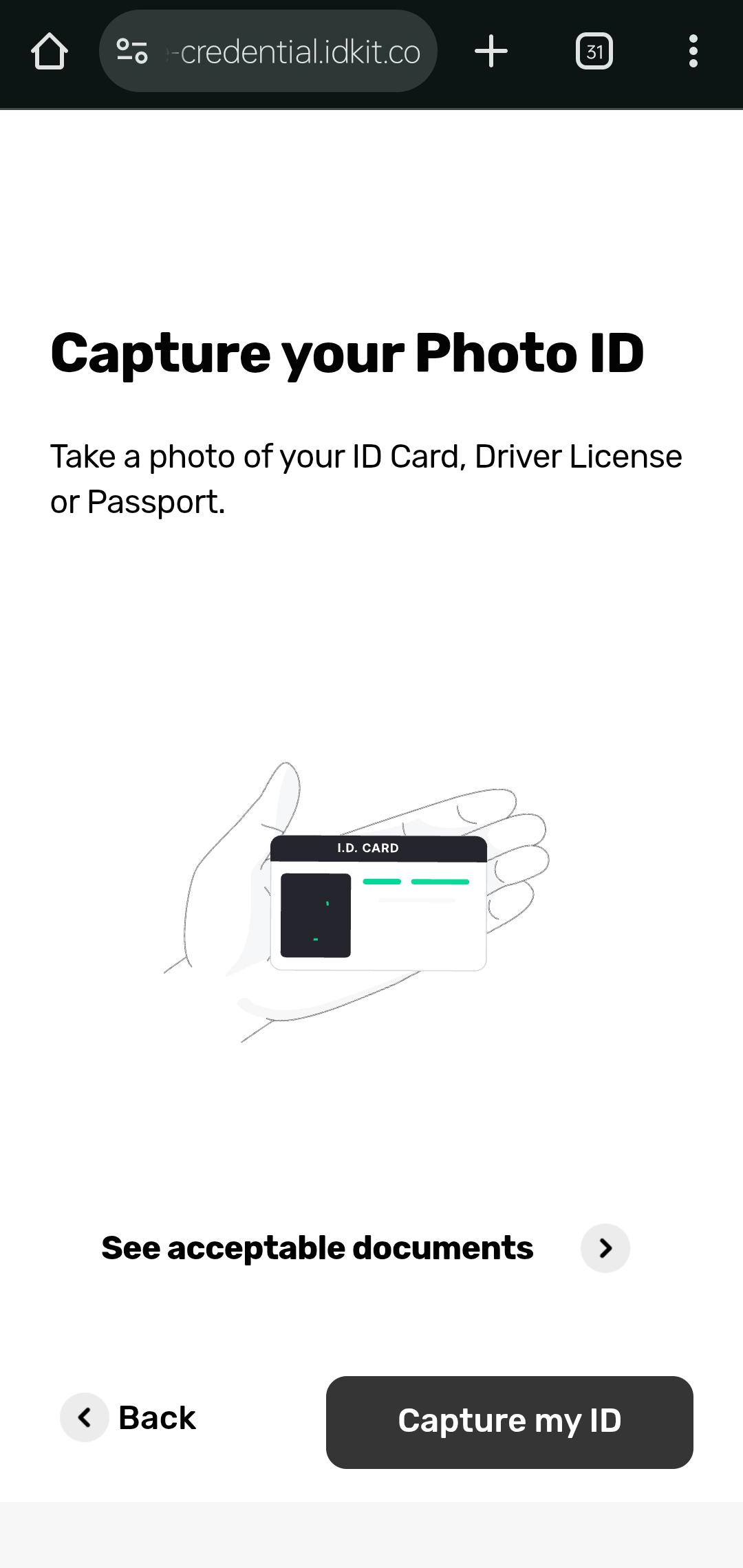
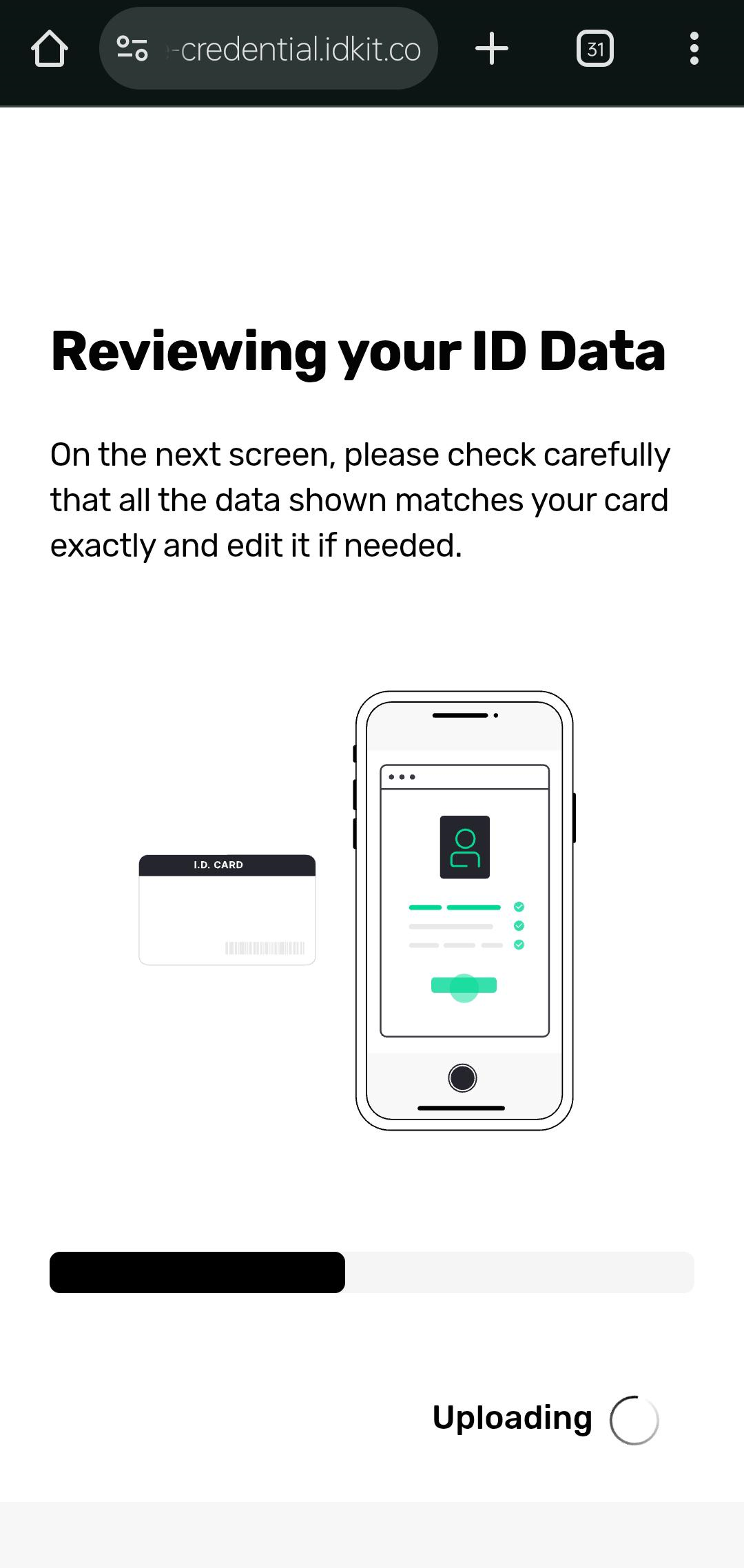
Capture the front of your ID document. The system will automatically extract and review the data.
Capture Guidelines
- Lighting: Ensure proper lighting to avoid shadows or dark areas
- Positioning: Keep the ID within the frame boundaries
- Glare: Angle the document to prevent glare or reflections
- Clarity: Ensure all text is clearly visible and not blurred
- Stability: Hold your device steady to avoid motion blur
Step 3: ID Document Capture (Back)
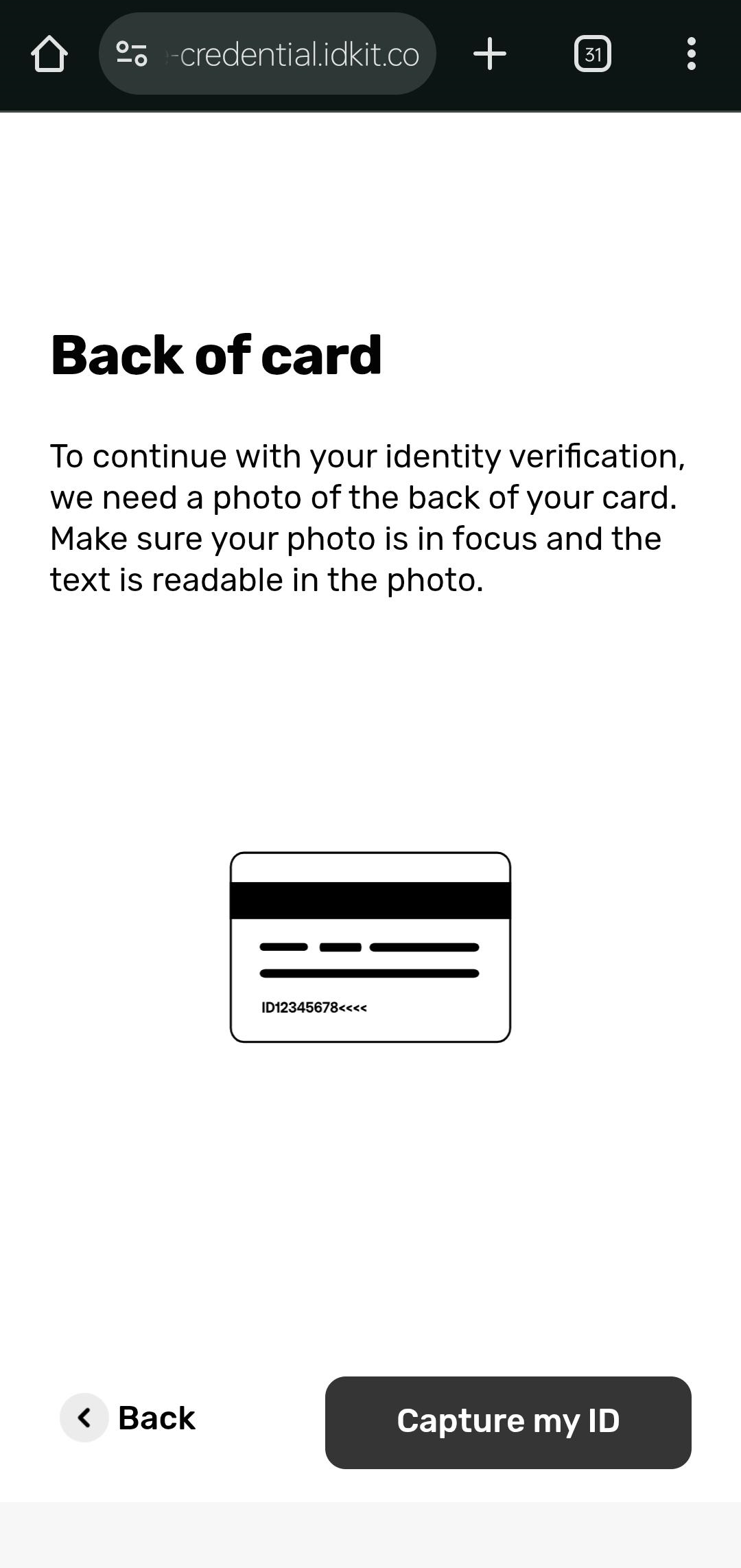
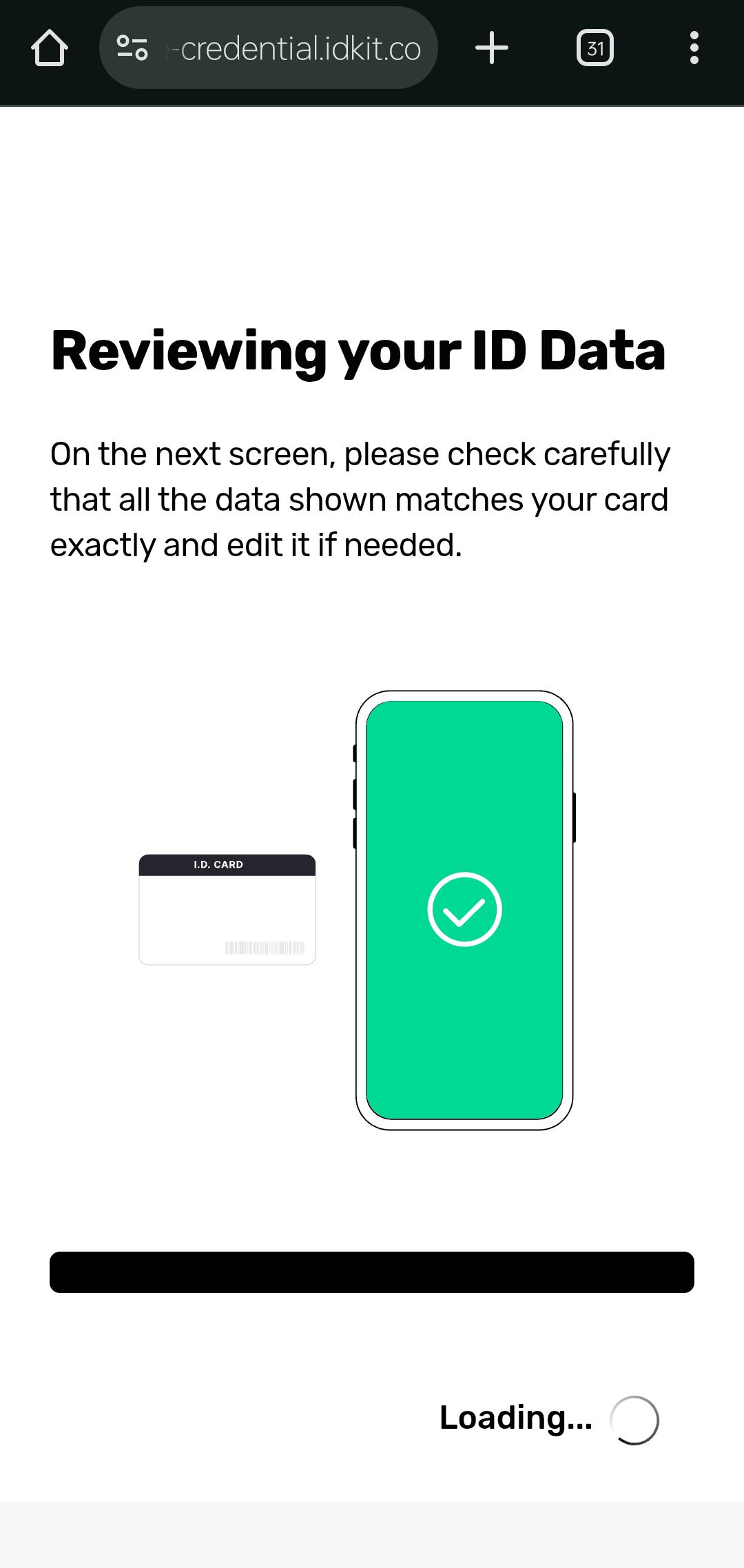
Capture the back of your ID card. The system will process the additional information from this side of the document.
Capture Guidelines
Follow the same guidelines as for the front capture.
Step 4: Data Verification
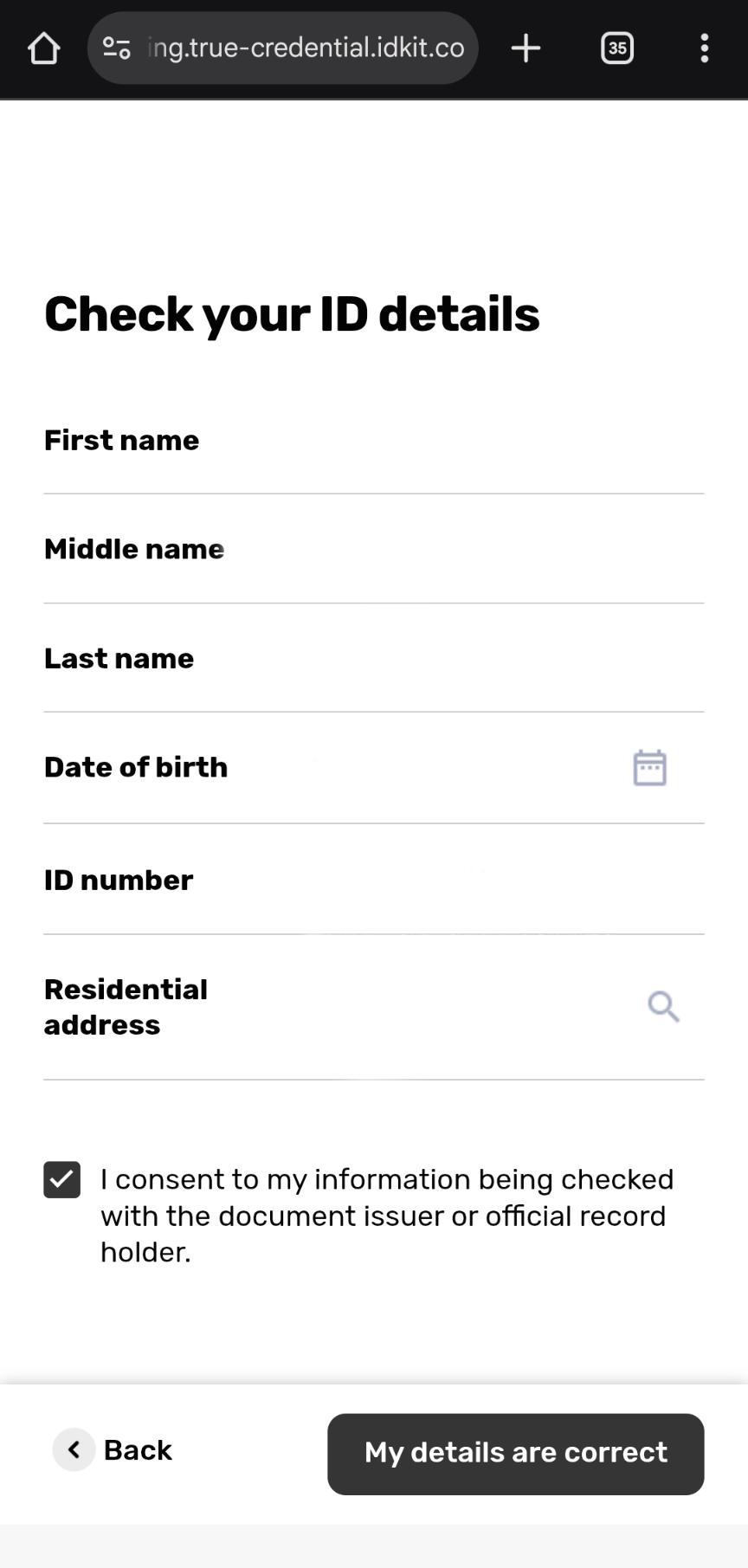
Review the extracted information from your ID document:
- Full name
- Middle name
- Last name
- Date of birth
- ID number
- Residential Address
- etc.
Ensure all details are correct. If any information is incorrect, you can update it before continuing.
Step 5: Biometric Face Verification
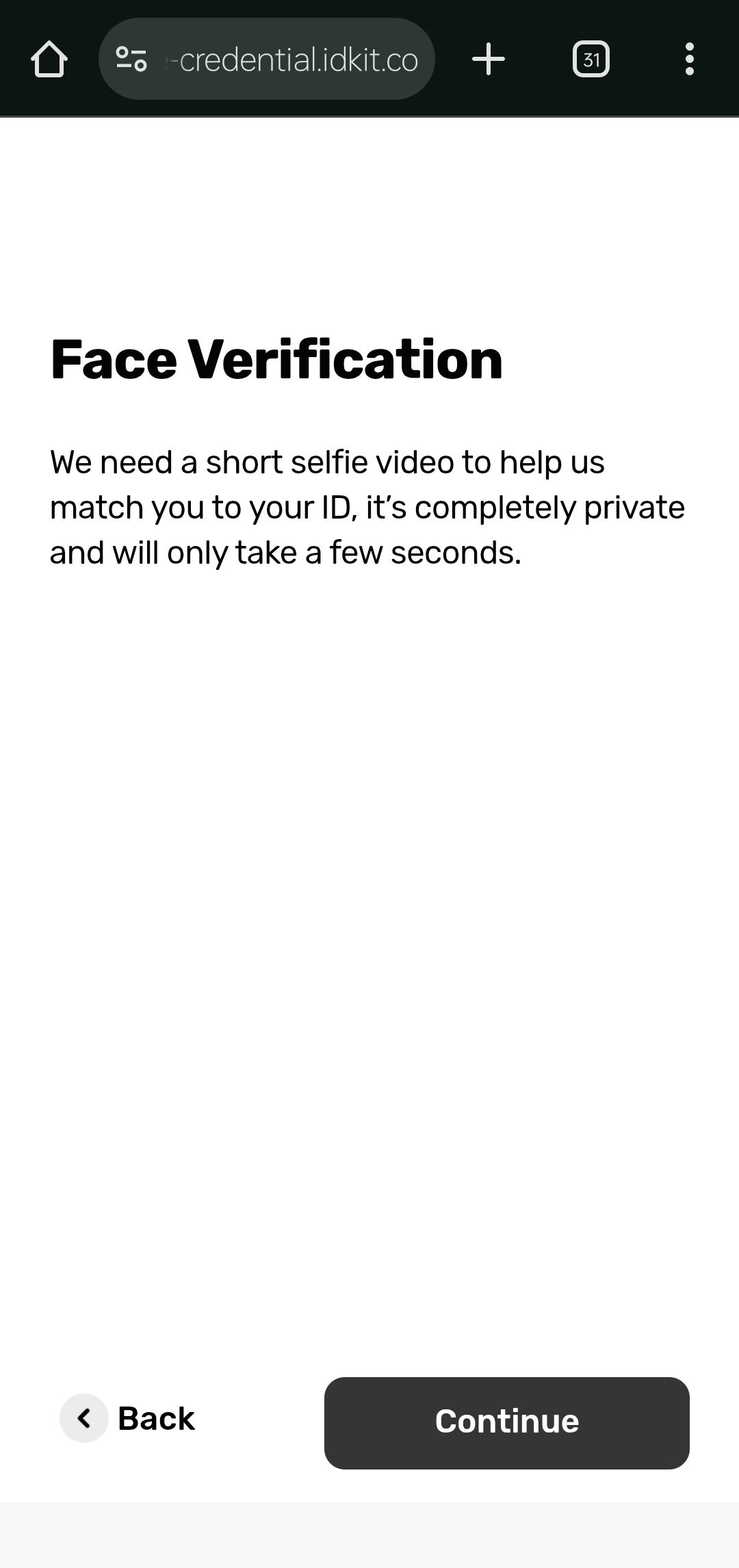


Complete the biometric face verification to confirm that your live photo matches the image on your ID document.
Capture Guidelines
- Lighting: Use bright, even lighting (avoid strong backlight).
- Positioning: Center your face within the oval frame.
- Instructions: Follow the on-screen and audio prompts carefully.
- Stability: Keep your device steady and at eye level.
- Accessories: Remove glasses, hats, or other face coverings.
Step 6: Verification Complete

Your identity verification is now complete. You’ll be automatically redirected back to TrueCredential to continue the issuance process.
Waiting for IDVerse Results
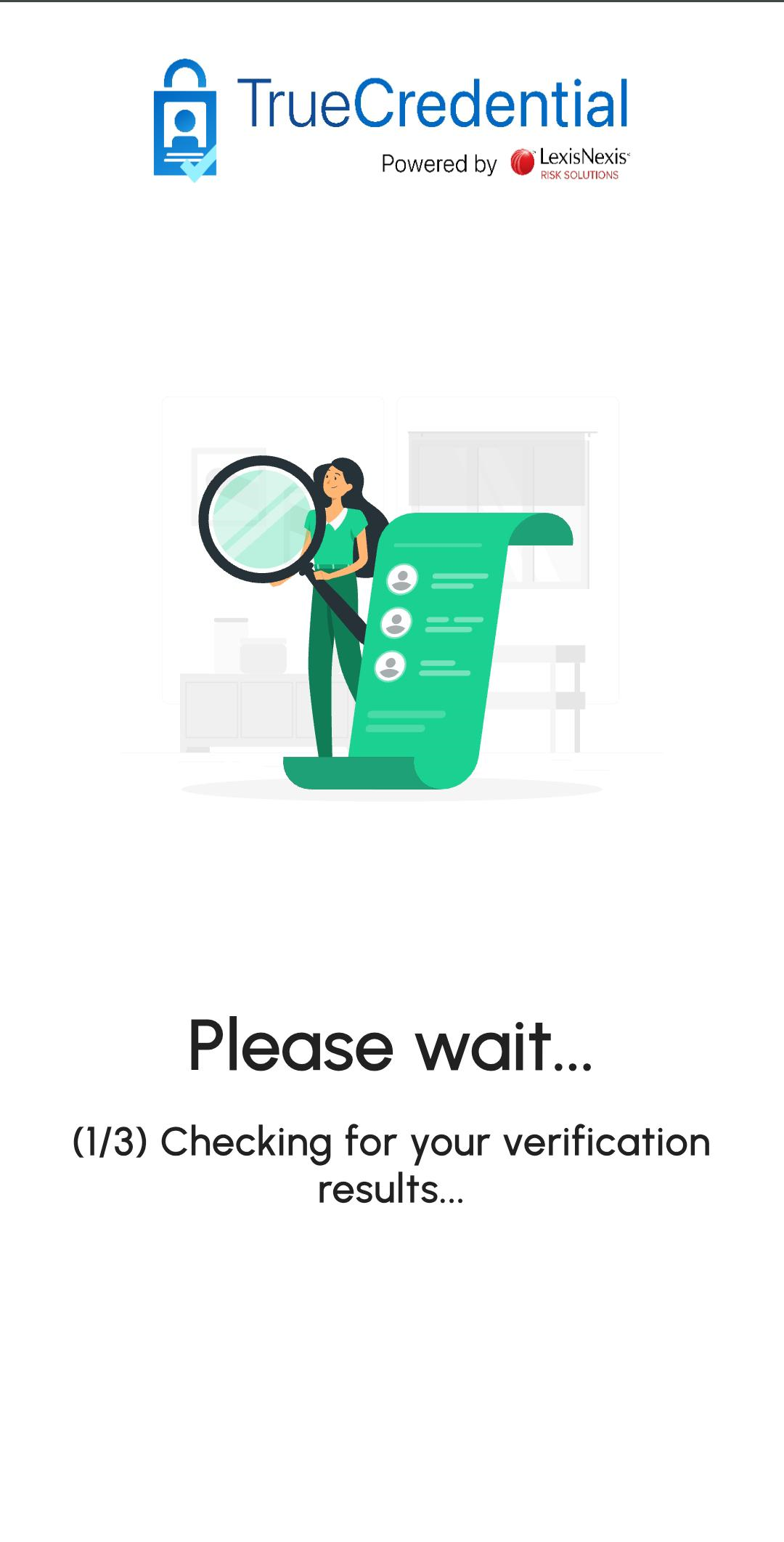
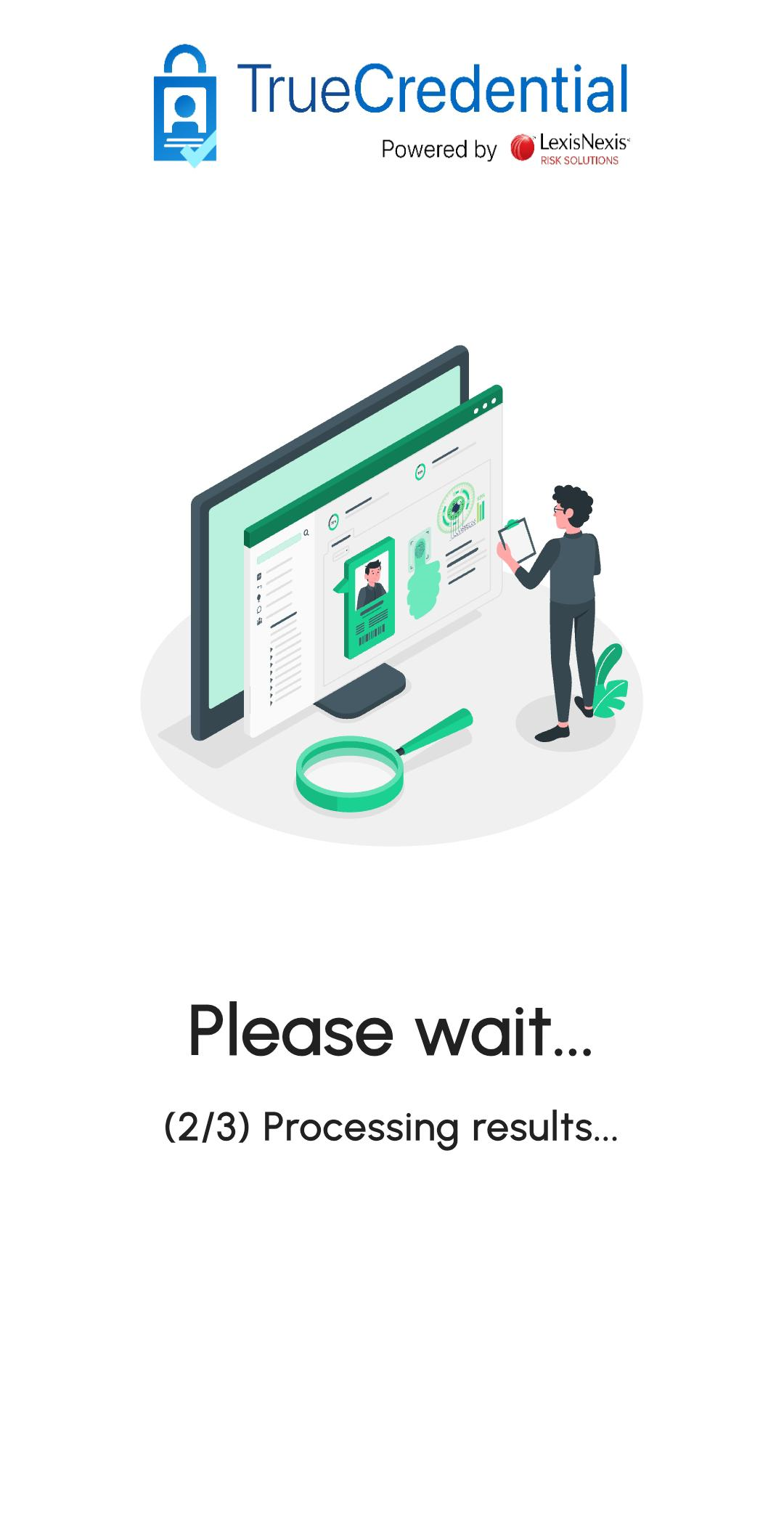
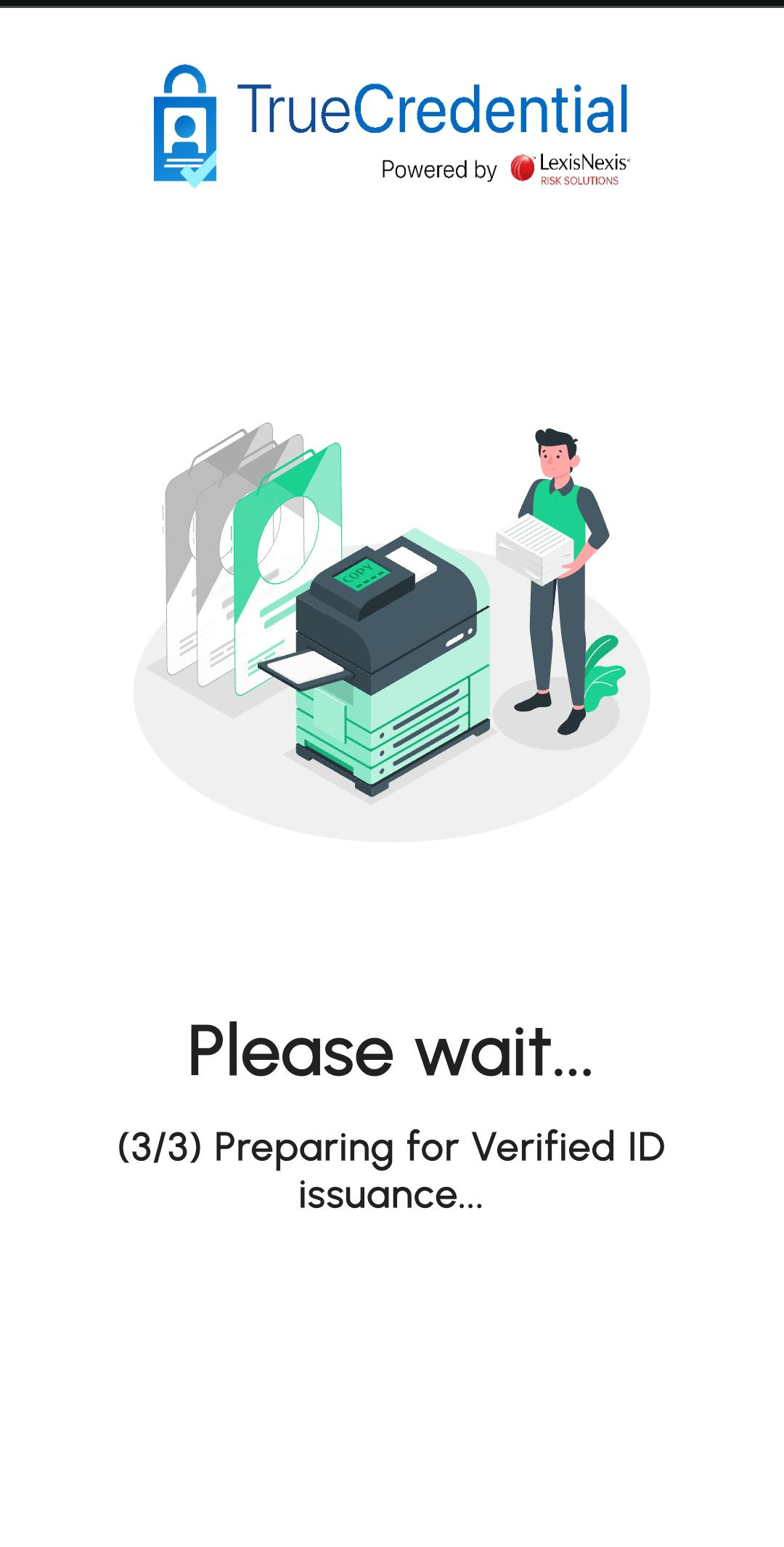
Please wait while the system:
- Validates your verification results
- Processes the data from IDVerse
- Prepares your Verifiable Credential
This step typically completes within a few moments.
Verifiable Credential Issuance
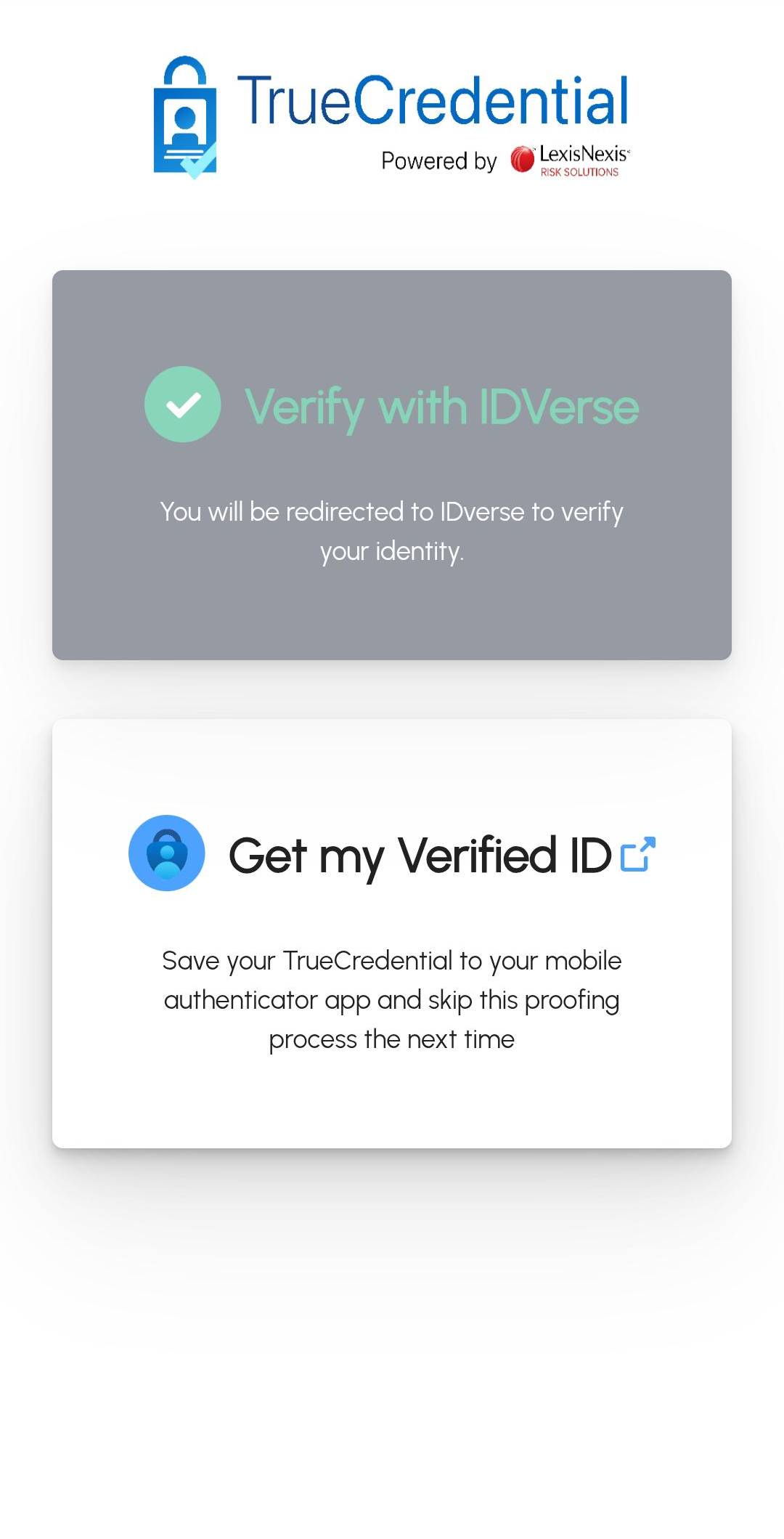
Success! Your Verifiable Credential has been issued. Select Get My Verified ID to open your authenticator app and access your credential.