JWT Setup
Prerequisites
Before you begin, ensure you have the following:
Common Requirements
- Access to the TrueCredential API base URL
- A registered Subscription ID from your TrueCredential Marketplace offering
- The Subscription must be in Subscribed status
Language-Specific Requirements
- C#
- PowerShell
- Java
- .NET 8.0 or higher
- Visual Studio, Visual Studio Code, or any C#-compatible IDE
- PowerShell 7+
- Java Development Kit (JDK) 8 or higher
Generate RSA Key Pair
You can generate RSA keys using any of the following methods. Each method creates:
- A private key file (
private_key.pem) - Keep this secure and never share it. - A public key file (
public_key.pem) - Update your subscription in the TrueCredential Management Portal with this for token validation. - Console output displays both keys in Base64 format (without PEM headers), making them easy to copy and use directly.
Implementation
- C#
- PowerShell
- Java
This method uses C#'s built-in System.Security.Cryptography library to generate cryptographically secure RSA keys.
using System.Security.Cryptography;
using System.Text;

class GenerateRsaKeys
{
    static void Main(string[] args)
    {
        Console.ForegroundColor = ConsoleColor.Cyan;
        Console.WriteLine("Generating TrueCredential-compatible RSA key pair...");

        int keySize = 2048;
        string outputPath = Path.Combine(AppContext.BaseDirectory, "output");
        Directory.CreateDirectory(outputPath);

        using (var rsa = RSA.Create(keySize))
        {
            // Export private key (PKCS#8)
            var privateKeyBytes = rsa.ExportPkcs8PrivateKey();
            string privateKeyBase64 = Convert.ToBase64String(privateKeyBytes);
            string privateKeyPem = "-----BEGIN PRIVATE KEY-----\n" +
                                   privateKeyBase64 +
                                   "\n-----END PRIVATE KEY-----";

            // Export public key (SPKI)
            var publicKeyBytes = rsa.ExportSubjectPublicKeyInfo();
            string publicKeyBase64 = Convert.ToBase64String(publicKeyBytes);
            string publicKeyPem = "-----BEGIN PUBLIC KEY-----\n" +
                                  publicKeyBase64 +
                                  "\n-----END PUBLIC KEY-----";

            // Save full PEMs to files
            string privateKeyPath = Path.Combine(outputPath, "private_key.pem");
            string publicKeyPath = Path.Combine(outputPath, "public_key.pem");

            File.WriteAllText(privateKeyPath, privateKeyPem, Encoding.ASCII);
            File.WriteAllText(publicKeyPath, publicKeyPem, Encoding.ASCII);

            // Show only Base64 in console (without BEGIN/END)
            Console.ForegroundColor = ConsoleColor.Green;
            Console.WriteLine("\n========================================");
            Console.WriteLine("TrueCredential-compatible keys generated successfully!");
            Console.WriteLine("========================================");

            Console.ForegroundColor = ConsoleColor.Cyan;
            Console.WriteLine($"Private Key saved to: {privateKeyPath}");
            Console.WriteLine($"Public Key saved to: {publicKeyPath}");

            Console.ForegroundColor = ConsoleColor.Yellow;
            Console.WriteLine("\n--- PUBLIC KEY (Base64 only) ---");
            Console.WriteLine(publicKeyBase64);

            Console.WriteLine("\n--- PRIVATE KEY (Base64 only) ---");
            Console.WriteLine(privateKeyBase64);
        }
        Console.ForegroundColor = ConsoleColor.White;
        Console.WriteLine("\nPress any key to exit...");
        Console.ReadKey();
    }
}
This method provides a PowerShell script for quick RSA key generation.
# RSA Key Generation Script for TrueCredential JWT Authentication
# Generates a 2048-bit RSA key pair

function Generate-RSAKeyPair {
   param(
    [int]$KeySize = 2048,
    [string]$OutputPath = "."
    )

    Write-Host "Generating TrueCredential-compatible RSA key pair..." -ForegroundColor Cyan

    try {
        # Create RSA provider
        $rsa = [System.Security.Cryptography.RSA]::Create($KeySize)

        # Export private key (PKCS#8)
        $privateKeyBytes = $rsa.ExportPkcs8PrivateKey()
        $privateKeyBase64 = [Convert]::ToBase64String($privateKeyBytes)
        $privateKeyPem = "-----BEGIN PRIVATE KEY-----`n$privateKeyBase64`n-----END PRIVATE KEY-----"

        # Export public key (SPKI)
        $publicKeyBytes = $rsa.ExportSubjectPublicKeyInfo()
        $publicKeyBase64 = [Convert]::ToBase64String($publicKeyBytes)
        $publicKeyPem = "-----BEGIN PUBLIC KEY-----`n$publicKeyBase64`n-----END PUBLIC KEY-----"

        # Save PEMs to files
        $privateKeyPath = Join-Path $OutputPath "private_key.pem"
        $publicKeyPath = Join-Path $OutputPath "public_key.pem"

        $privateKeyPem | Out-File -FilePath $privateKeyPath -Encoding ascii -NoNewline
        $publicKeyPem | Out-File -FilePath $publicKeyPath -Encoding ascii -NoNewline

        Write-Host "`n========================================" -ForegroundColor Green
        Write-Host "TrueCredential-compatible keys generated successfully!" -ForegroundColor Green
        Write-Host "========================================" -ForegroundColor Green
        Write-Host "Private Key saved to: $privateKeyPath" -ForegroundColor Cyan
        Write-Host "Public Key saved to: $publicKeyPath" -ForegroundColor Cyan

        Write-Host "`n--- PUBLIC KEY (Base64 only) ---" -ForegroundColor Yellow
        Write-Host $publicKeyBase64

        Write-Host "`n--- PRIVATE KEY (Base64 only) ---" -ForegroundColor Yellow
        Write-Host $privateKeyBase64

    }
    catch {
        Write-Host "Error generating keys: $_" -ForegroundColor Red
    }
    finally {
        if ($null -ne $rsa) {
            $rsa.Dispose()
        }
    }
}
# Execute key generation
Generate-RSAKeyPair -OutputPath "."
This method uses Java's security APIs to generate RSA keys.
import java.io.FileOutputStream;
import java.io.IOException;
import java.nio.charset.StandardCharsets;
import java.security.*;
import java.security.spec.*;
import java.util.Base64;

public class GenerateRsaKeys {
    public static void main(String[] args) throws Exception {
        int keySize = 2048;

        System.out.println("\u001B[36mGenerating TrueCredential-compatible RSA key pair...\u001B[0m");

        KeyPairGenerator keyGen = KeyPairGenerator.getInstance("RSA");
        keyGen.initialize(keySize);
        KeyPair keyPair = keyGen.generateKeyPair();

        // Export private key (PKCS#8)
        byte[] privateKeyBytes = keyPair.getPrivate().getEncoded();
        String privateKeyBase64 = Base64.getEncoder().encodeToString(privateKeyBytes);
        String privateKeyPem = "-----BEGIN PRIVATE KEY-----\n"
                + privateKeyBase64
                + "\n-----END PRIVATE KEY-----";

        // Export public key (SPKI)
        byte[] publicKeyBytes = keyPair.getPublic().getEncoded();
        String publicKeyBase64 = Base64.getEncoder().encodeToString(publicKeyBytes);
        String publicKeyPem = "-----BEGIN PUBLIC KEY-----\n"
                + publicKeyBase64
                + "\n-----END PUBLIC KEY-----";

        // Save PEMs to files
        try (FileOutputStream privOut = new FileOutputStream("private_key.pem");
             FileOutputStream pubOut = new FileOutputStream("public_key.pem")) {
            privOut.write(privateKeyPem.getBytes(StandardCharsets.US_ASCII));
            pubOut.write(publicKeyPem.getBytes(StandardCharsets.US_ASCII));
        }

        // Print success messages
        System.out.println("\u001B[32m\n========================================");
        System.out.println("TrueCredential-compatible keys generated successfully!");
        System.out.println("========================================\u001B[0m");

        System.out.println("\u001B[36mPrivate Key saved to: private_key.pem");
        System.out.println("Public Key saved to: public_key.pem\u001B[0m");

        System.out.println("\u001B[33m\n--- PUBLIC KEY (Base64 only) ---");
        System.out.println(publicKeyBase64 + "\u001B[0m");

        System.out.println("\n--- PRIVATE KEY (Base64 only) ---");
        System.out.println(privateKeyBase64 + "\u001B[0m");

    }
}
Output Summary
After running the code in your preferred language, the following files will be created:
| File Name | Description | Format |
|---|---|---|
private_key.pem | Your private RSA key — used to sign JWT tokens for TrueCredential authentication. Keep this file secure and never share it. | PKCS#8 |
public_key.pem | Your public RSA key — use this to update your subscription in the TrueCredential Management Portal for token validation. | SPKI |
Console Output: Displays both the public and private keys in Base64 format (without PEM headers) for easy reference or embedding.
- All methods generate RSA key pairs using 2048-bit encryption
- Keys are stored in PEM format
- Console output provides Base64 versions (without PEM headers)
Update your Public Key in the Management Portal
-
Navigate to https://securitystore.microsoft.com/my-solutions/
-
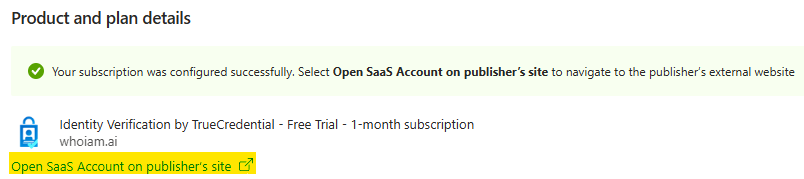
Find the Subscription you want to update and click its Resource name to open the Product and plan details of your Marketplace Subscription in the Azure Portal.

-
Click Open SaaS Account on publisher's site to open the TrueCredential Management Portal.
-
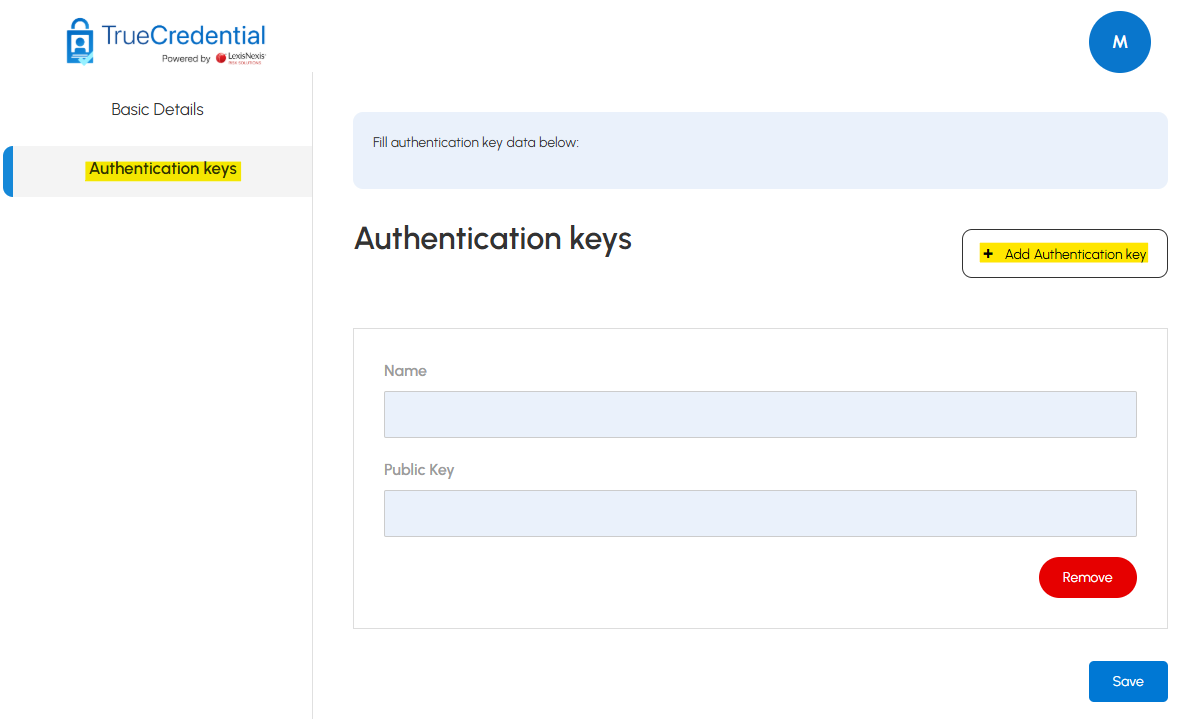
In the TrueCredential Management Portal, click the Authentication keys tab on the left, then click the Add Authentication key button.
-
Enter a name for the key and the public key value from the previous step, then click Save.
Generate JWT Token & Invoke Workflow
After generating your RSA key pair and obtaining your Subscription ID, use your private key to sign JWT tokens that authenticate TrueCredential workflow API call.
Process Overview
- Load the private key generated earlier (
private_key.pem) - Generate a JWT token containing the required claims, signed with your private key
- Invoke the workflow API using the token for authenticated access
JWT Token Parameters
| Parameter | Value | Description |
|---|---|---|
| aud | TrueCredential.API | Audience for which the token is intended |
| iss | TrueCredential.TokenIssuer | Token issuer identifier |
| exp | +180 seconds | Token expiration (3 minutes from creation) |
| kid | samplekey | Key identifier used for signature verification |
| redirectUrl | Your redirect URL | Client redirect URL |
| client | Your Subscription ID | Identifier obtained from your TrueCredential Marketplace |
Implementation
- C#
- PowerShell
- Java
Install Required NuGet Package
System.IdentityModel.Tokens.Jwt
using System.Security.Cryptography;
using Microsoft.IdentityModel.JsonWebTokens;
using System.Text.RegularExpressions;
using Microsoft.IdentityModel.Tokens;

class JwtWorkflowBuilder
{
    static void Main(string[] args)
    {
        Console.ForegroundColor = ConsoleColor.Cyan;
        Console.WriteLine("TrueCredential JWT Workflow Builder");
        Console.WriteLine("========================================\n");

        //  CONFIGURE THESE VALUES
        string privateKeyPath = Path.Combine(AppContext.BaseDirectory, "output", "private_key.pem");
        string clientId = "YOUR_SUBSCRIPTION_ID_HERE";
        string redirectUrl = "https://your-redirect-url.com";
        string baseUrl = "https://www.true-credential.com";
        string workflowId = "IssueCredential";

        try
        {
            // Read private key from file
            if (!File.Exists(privateKeyPath))
            {
                Console.ForegroundColor = ConsoleColor.Red;
                Console.WriteLine($"Error: Private key not found at: {privateKeyPath}");
                Console.WriteLine("Please ensure you've run Step 1 (Generate RSA Keys) first.");
                Console.ResetColor();
                return;
            }

            string privateKeyPem = File.ReadAllText(privateKeyPath);

            // Parse PEM and create RSA key
            using (RSA rsa = RSA.Create())
            {
                int bytesRead;
                rsa.ImportPkcs8PrivateKey(ReadKeyString(privateKeyPem), out bytesRead);
                var rsaSecurityKey = new RsaSecurityKey(rsa);
                rsaSecurityKey.KeyId = "samplekey";

                // Create JWT token
                var tokenHandler = new JsonWebTokenHandler();
                var now = DateTime.UtcNow;

                var tokenDescriptor = new SecurityTokenDescriptor
                {
                    Audience = "TrueCredential.API",
                    Issuer = "TrueCredential.TokenIssuer",
                    IssuedAt = now,
                    NotBefore = now,
                    Expires = now.AddSeconds(180),
                    SigningCredentials = new SigningCredentials(rsaSecurityKey, SecurityAlgorithms.RsaSha256),
                    Claims = new Dictionary<string, object>
                {
                    { "redirectUrl", redirectUrl },
                    { "client", clientId }
                }
                };

                // Add custom header (kid)
                tokenHandler.SetDefaultTimesOnTokenCreation = false;
                var token = tokenHandler.CreateToken(tokenDescriptor);

                // Display results
                Console.ForegroundColor = ConsoleColor.Green;
                Console.WriteLine("JWT Token Generated Successfully!");
                Console.WriteLine("========================================\n");

                Console.ForegroundColor = ConsoleColor.Yellow;
                Console.WriteLine("--- GENERATED JWT TOKEN ---");
                Console.ForegroundColor = ConsoleColor.White;
                Console.WriteLine(token);

                Console.ForegroundColor = ConsoleColor.Cyan;
                Console.WriteLine("\n--- WORKFLOW URL ---");
                Console.ForegroundColor = ConsoleColor.White;
                string workflowUrl = $"{baseUrl}/api/wf/connect?token={token}&workflow={workflowId}";
                Console.WriteLine(workflowUrl);

                Console.ForegroundColor = ConsoleColor.Cyan;
                Console.WriteLine("\n--- CURL COMMAND ---");
                Console.ForegroundColor = ConsoleColor.White;
                Console.WriteLine($"curl -X GET \"{workflowUrl}\"");

                Console.ForegroundColor = ConsoleColor.White;
                Console.WriteLine("\n========================================");
                Console.WriteLine("Token expires in 3 minutes (180 seconds)");
                Console.WriteLine("Run this program again to generate a new token");
                Console.WriteLine("========================================");
            }
        }
        catch (Exception ex)
        {
            Console.ForegroundColor = ConsoleColor.Red;
            Console.WriteLine($"Error: {ex.Message}");
        }
        finally
        {
            Console.ResetColor();
            Console.WriteLine("\nPress any key to exit...");
            Console.ReadKey();
        }

    }
    public static byte[] ReadKeyString(string pemOrBase64)
    {
        string privateKeyHeader = "-----BEGIN PRIVATE KEY-----";
        string privateKeyFooter = "-----END PRIVATE KEY-----";
        string publicKeyHeader = "-----BEGIN PUBLIC KEY-----";
        string publicKeyFooter = "-----END PUBLIC KEY-----";

        if (pemOrBase64.Contains(privateKeyHeader) && pemOrBase64.Contains(privateKeyFooter))
        {
            pemOrBase64 = pemOrBase64.Replace(privateKeyHeader, "")
                                     .Replace(privateKeyFooter, "");
        }
        if (pemOrBase64.Contains(publicKeyHeader) && pemOrBase64.Contains(publicKeyFooter))
        {
            pemOrBase64 = pemOrBase64.Replace(publicKeyHeader, "")
                                     .Replace(publicKeyFooter, "");
        }

        // Remove newlines and spaces properly
        string base64 = Regex.Replace(pemOrBase64, @"\s+", "");
        return Convert.FromBase64String(base64);
    }
}
Configure Your Values:
string clientId = "YOUR_SUBSCRIPTION_ID_HERE";  // Replace with your actual Subscription ID
string redirectUrl = "https://your-redirect-url.com";  // Replace with client_url
string baseUrl = "https://www.true-credential.com";  // Replace with TrueCredential api base url
string workflowId = "id-proofing-vc-issuance";  // For ISSUANCE, use "vc-presentation" for PRESENTATION
# TrueCredential JWT Workflow Builder (PowerShell)

# CONFIGURE THESE VALUES
$privateKeyPath = ".\private_key.pem"
$clientId = "YOUR_SUBSCRIPTION_ID_HERE"
$redirectUrl = "https://your-redirect-url.com"
$baseUrl = "https://www.true-credential.com"
$workflowId = "IssueCredential"

function ConvertTo-Base64Url {
    param([byte[]]$Data)
    $base64 = [Convert]::ToBase64String($Data)
    return $base64.TrimEnd('=').Replace('+', '-').Replace('/', '_')
}

function Remove-PemHeaders {
    param([string]$PemContent)

    # Remove PEM headers and all whitespace
    $clean = $PemContent -replace '-----BEGIN PRIVATE KEY-----', ''
    $clean = $clean -replace '-----END PRIVATE KEY-----', ''
    $clean = $clean -replace '-----BEGIN PUBLIC KEY-----', ''
    $clean = $clean -replace '-----END PUBLIC KEY-----', ''
    $clean = $clean -replace '\s+', ''
    return $clean
}

function New-JwtToken {
    param(
        [string]$PrivateKeyPem,
        [string]$Issuer,
        [string]$Audience,
        [int]$ExpirySeconds,
        [hashtable]$Claims,
        [string]$KeyId
    )

    try {
        Write-Host "Generating JWT Token..." -ForegroundColor Cyan

        # Create JWT Header
        $header = @{
            alg = "RS256"
            typ = "JWT"
            kid = $KeyId
        } | ConvertTo-Json -Compress

        # Create JWT Payload
        $now = [int][double]::Parse((Get-Date).ToUniversalTime().Subtract((Get-Date "1970-01-01")).TotalSeconds)
        $exp = $now + $ExpirySeconds

        $payload = @{
            iss = $Issuer
            aud = $Audience
            iat = $now
            nbf = $now
            exp = $exp
        }

        # Add custom claims
        foreach ($key in $Claims.Keys) {
            $payload[$key] = $Claims[$key]
        }

        $payloadJson = $payload | ConvertTo-Json -Compress

        # Encode header and payload
        $headerBytes = [System.Text.Encoding]::UTF8.GetBytes($header)
        $payloadBytes = [System.Text.Encoding]::UTF8.GetBytes($payloadJson)

        $headerEncoded = ConvertTo-Base64Url -Data $headerBytes
        $payloadEncoded = ConvertTo-Base64Url -Data $payloadBytes

        $dataToSign = "$headerEncoded.$payloadEncoded"
        $dataToSignBytes = [System.Text.Encoding]::UTF8.GetBytes($dataToSign)

        # Load private key
        $cleanKey = Remove-PemHeaders -PemContent $PrivateKeyPem
        $keyBytes = [Convert]::FromBase64String($cleanKey)

        $rsa = [System.Security.Cryptography.RSA]::Create()
        $bytesRead = 0
        $rsa.ImportPkcs8PrivateKey($keyBytes, [ref]$bytesRead)

        # Sign the data
        $signature = $rsa.SignData($dataToSignBytes, [System.Security.Cryptography.HashAlgorithmName]::SHA256, [System.Security.Cryptography.RSASignaturePadding]::Pkcs1)
        $signatureEncoded = ConvertTo-Base64Url -Data $signature

        $jwt = "$headerEncoded.$payloadEncoded.$signatureEncoded"

        $rsa.Dispose()

        return $jwt
    }
    catch {
        Write-Host "Error generating JWT: $_" -ForegroundColor Red
        return $null
    }
}

# Main Execution
Write-Host "`nTrueCredential JWT Workflow Builder" -ForegroundColor Cyan
Write-Host "========================================`n" -ForegroundColor Cyan

# Check if private key exists
if (-not (Test-Path $privateKeyPath)) {
    Write-Host "Error: Private key not found at: $privateKeyPath" -ForegroundColor Red
    Write-Host "Please ensure you've run Step 1 (Generate RSA Keys) first." -ForegroundColor Red
    exit 1
}

# Read private key
$privateKeyPem = Get-Content $privateKeyPath -Raw

# Create claims
$claims = @{
    redirectUrl = $redirectUrl
    client      = $clientId
}

# Generate JWT token
$jwtToken = New-JwtToken `
    -PrivateKeyPem $privateKeyPem `
    -Issuer "TrueCredential.TokenIssuer" `
    -Audience "TrueCredential.API" `
    -ExpirySeconds 180 `
    -Claims $claims `
    -KeyId "samplekey"

if ($null -eq $jwtToken) {
    Write-Host "Failed to generate token. Please check your private key." -ForegroundColor Red
    exit 1
}

# Display results
Write-Host "JWT Token Generated Successfully!" -ForegroundColor Green
Write-Host "========================================`n" -ForegroundColor Green

Write-Host "--- GENERATED JWT TOKEN ---" -ForegroundColor Yellow
Write-Host $jwtToken -ForegroundColor White

$workflowUrl = "$baseUrl/api/wf/connect?token=$jwtToken&workflow=$workflowId"

Write-Host "`n--- WORKFLOW URL ---" -ForegroundColor Cyan
Write-Host $workflowUrl -ForegroundColor White

Write-Host "`n--- CURL COMMAND ---" -ForegroundColor Cyan
Write-Host "curl -X GET `"$workflowUrl`"" -ForegroundColor White

Write-Host "`n========================================" -ForegroundColor White
Write-Host "Token expires in 3 minutes (180 seconds)" -ForegroundColor White
Write-Host "Run this script again to generate a new token" -ForegroundColor White
Write-Host "========================================`n" -ForegroundColor White
Configure Your Values
$clientId = "YOUR_SUBSCRIPTION_ID_HERE"  # Replace with your actual Subscription ID
$redirectUrl = "https://your-redirect-url.com"  # Replace with client_url
$baseUrl = "https://www.true-credential.com"  # Replace with TrueCredential api base url
$workflowId = "id-proofing-vc-issuance"  # For ISSUANCE, use "vc-presentation" for PRESENTATION
This implementation uses the java-jwt library. You have two options:
Option A: Using Maven
Add to your pom.xml:
<dependency>
    <groupId>com.auth0</groupId>
    <artifactId>java-jwt</artifactId>
    <version>4.4.0</version>
</dependency>
Option B: Manual Download
Download these JAR files and place them in the same directory as your Java file:
java-jwt-4.5.0.jarfrom https://repo1.maven.org/maven2/com/auth0/java-jwt/4.5.0/jackson-databind-2.20.0.jarfrom https://repo1.maven.org/maven2/com/fasterxml/jackson/core/jackson-databind/2.20.0/jackson-core-2.20.0.jarfrom https://repo1.maven.org/maven2/com/fasterxml/jackson/core/jackson-core/2.20.0/jackson-annotations-2.20.jarfrom https://repo1.maven.org/maven2/com/fasterxml/jackson/core/jackson-annotations/2.20/
import com.auth0.jwt.JWT;
import com.auth0.jwt.algorithms.Algorithm;
import java.io.IOException;
import java.nio.file.Files;
import java.nio.file.Paths;
import java.security.KeyFactory;
import java.security.interfaces.RSAPrivateKey;
import java.security.spec.PKCS8EncodedKeySpec;
import java.util.Base64;
import java.util.Date;

public class JwtWorkflowBuilder {

    //  CONFIGURE THESE VALUES
    private static final String PRIVATE_KEY_PATH = "./private_key.pem";
    private static final String CLIENT_ID = "YOUR_SUBSCRIPTION_ID_HERE";
    private static final String REDIRECT_URL = "https://your-redirect-url.com";
    private static final String BASE_URL = "https://www.true-credential.com";
    private static final String WORKFLOW_ID = "IssueCredential";

    public static void main(String[] args) {
        System.out.println("\u001B[36mTrueCredential JWT Workflow Builder");
        System.out.println("========================================\n\u001B[0m");

        try {
            // Check if private key file exists
            if (!Files.exists(Paths.get(PRIVATE_KEY_PATH))) {
                System.out.println("\u001B[31mError: Private key not found at: " + PRIVATE_KEY_PATH);
                System.out.println("Please ensure you've run Step 1 (Generate RSA Keys) first.\u001B[0m");
                return;
            }

            // Load private key
            RSAPrivateKey privateKey = loadPrivateKey(PRIVATE_KEY_PATH);

            // Create JWT token
            Algorithm algorithm = Algorithm.RSA256(null, privateKey);
            String token = JWT.create()
                .withIssuer("TrueCredential.TokenIssuer")
                .withAudience("TrueCredential.API")
                .withIssuedAt(new Date())
                .withNotBefore(new Date())
                .withExpiresAt(new Date(System.currentTimeMillis() + 180 * 1000))
                .withClaim("redirectUrl", REDIRECT_URL)
                .withClaim("client", CLIENT_ID)
                .withKeyId("samplekey")
                .sign(algorithm);

            // Display results
            System.out.println("\u001B[32mJWT Token Generated Successfully!");
            System.out.println("========================================\n\u001B[0m");

            System.out.println("\u001B[33m--- GENERATED JWT TOKEN ---\u001B[0m");
            System.out.println(token);

            String workflowUrl = BASE_URL + "/api/wf/connect?token=" + token + "&workflow=" + WORKFLOW_ID;

            System.out.println("\n\u001B[36m--- WORKFLOW URL ---\u001B[0m");
            System.out.println(workflowUrl);

            System.out.println("\n\u001B[36m--- CURL COMMAND ---\u001B[0m");
            System.out.println("curl -X GET \"" + workflowUrl + "\"");

            System.out.println("\n\u001B[35m========================================");
            System.out.println("Token expires in 3 minutes (180 seconds)");
            System.out.println("Run this program again to generate a new token");
            System.out.println("========================================\u001B[0m\n");

        } catch (Exception e) {
            System.out.println("\u001B[31mError: " + e.getMessage() + "\u001B[0m");
            e.printStackTrace();
        }
    }

    private static RSAPrivateKey loadPrivateKey(String filepath) throws Exception {
        // Read PEM file
        String pem = new String(Files.readAllBytes(Paths.get(filepath)));

        // Remove PEM headers and whitespace
        String privateKeyPEM = pem
            .replace("-----BEGIN PRIVATE KEY-----", "")
            .replace("-----END PRIVATE KEY-----", "")
            .replaceAll("\\s", "");

        // Decode Base64
        byte[] encoded = Base64.getDecoder().decode(privateKeyPEM);

        // Create private key
        PKCS8EncodedKeySpec keySpec = new PKCS8EncodedKeySpec(encoded);
        KeyFactory keyFactory = KeyFactory.getInstance("RSA");
        return (RSAPrivateKey) keyFactory.generatePrivate(keySpec);
    }
}
Configure Your Values
private static final String CLIENT_ID = "YOUR_SUBSCRIPTION_ID_HERE";  // Replace with your actual Subscription ID
private static final String REDIRECT_URL = "https://your-redirect-url.com";  // Replace with client_url
private static final String BASE_URL = "https://www.true-credential.com";  // Replace with TrueCredential api base url
private static final String WORKFLOW_ID = "id-proofing-vc-issuance";  // For ISSUANCE, use "vc-presentation" for PRESENTATION
Output Summary
After running the code, the console displays:
| Output | Description |
|---|---|
| JWT Token | Signed with your private key for TrueCredential authentication. |
| Workflow URL | Complete API URL with the token and workflow ID. |
| cURL Command | Command to call and test the workflow API endpoint from a terminal. |
Using the Generated Workflow URL
You can now:
- Open the workflow URL directly in your browser, or
- Run the cURL command in your terminal to test the API call.
- JWT tokens are short-lived (180 seconds) for security.
- Re-run the generation script or program to obtain a new token whenever needed.